How to Set Up a Google Business Profile: A Guide to Adding Your Business to Maps
A Google Business Profile is free; it lets a business appear in search and on the map with its address, hours, photos and reviews. A guide to setup, verification, optimization and review management.
 Sefa AşkınSocial Media Specialist18 min read
In Brief
A Google Business Profile is your business’s free card on Google Search and Maps. To set one up, you enter the business name, category, address or service area and contact details with a Google account, then verify by a method such as postcard, phone, email or video. Complete information, up-to-date photos and review management help local visibility.
- The profile is free and is a way to reach customers searching "near me" in local searches.
- According to Google, verification increases the likelihood of the business being shown in search results; the business name should be entered as it appears on the signage and other branding.
- According to Google, complete and accurate information increases the likelihood of the business being shown in local results; review replies and photos can also help it stand out.
Table of Contents
When a customer types “pharmacy near me,” “best baklava shop” or “car tire repair” into their phone, the map, ratings, photos and call button that appear work as a storefront for businesses. A customer may be seeing a business for the first time on this card. This card is managed by the Google Business Profile, and it is free.
In this article we explain step by step how to set up a Google Business Profile: what the profile is, who can create one, the setup steps, verification methods, how to optimize the profile, photo and review management, what affects local ranking, measurement, deleting and transferring a profile, common problems and local SEO work. The interface may change over time; compare the steps with the current screens.
What is a Google Business Profile?
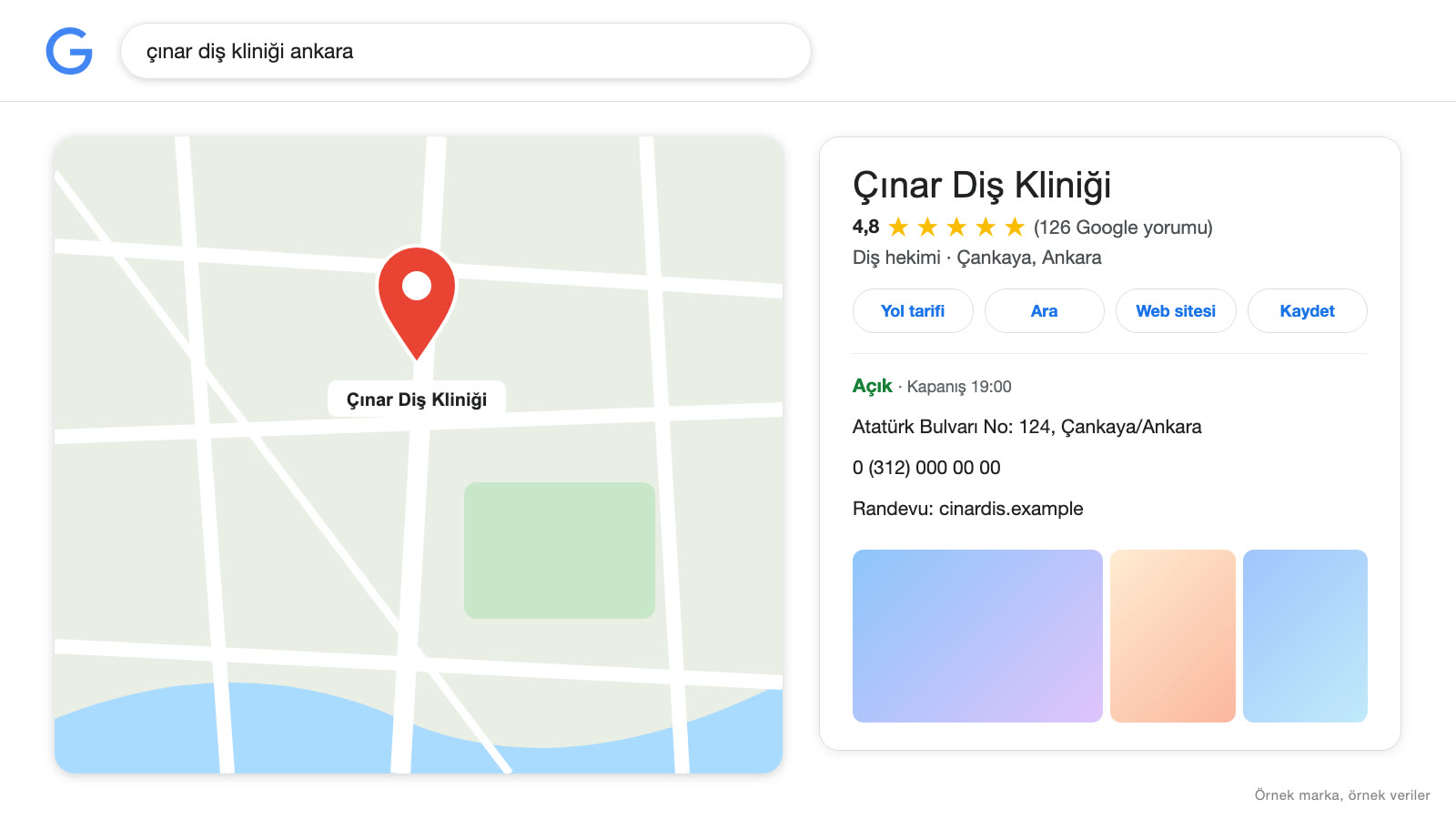
A Google Business Profile is a tool that lets businesses manage how they appear on Google Search and Google Maps; Google notes that you can manage how your business appears on Maps and Search for free. The business name, address, opening hours, phone, website, photos, services, products, reviews and updates are all gathered in this profile. It is the information card that comes up when a user searches for your business name or your type of business.
A profile matters especially for businesses that have a physical location or serve a specific area (restaurants, cafes, clinics, hair salons, stores, workshops, moving companies, plumbing, law firms, hotels and so on). Google notes that Business Profile can be used to improve a business’s local ranking; this is why local search optimization (local SEO) work starts with the profile.
Why does a Google Business Profile matter?
- Visibility in local searches: It gives you the chance to appear in the map and local result sections.
- Checking that the information is correct: According to Google, you enter your opening hours, website, phone number and location so that they are visible to customers; wrong information can mislead customers.
- Trust: According to Google, a verified profile can help customers find you and trust your business more.
- Direct action: In the performance data, Google shows interactions such as calls, directions and website clicks as separate metrics.
- It’s free: There is no upfront cost; it only takes time and regular maintenance.
- Measurement: For verified profiles, views, clicks and other interactions can be tracked (Google performance help).
Setting up a profile for a new business is one of the first digital steps you can take. We covered the broader digital framework in our digital marketing guide.
Who can create a profile?
Google’s getting-started page says that storefront businesses and service-area businesses can sign up for Business Profile; for businesses that only serve online, it points to signing up for Google Ads. The distinctions on Google’s guidelines page are as follows:
- Businesses with a physical storefront: Stores, restaurants, clinics and the like. A business that shows its address on Google must have a permanent, fixed sign at that address stating the business name.
- Businesses that serve customers at their location (service-area businesses): Plumbers, movers, cleaners and the like. According to Google, businesses that have no physical storefront with a clearly visible sign and that travel to the customer’s location are only allowed to create a service-area profile.
- Hybrid service-area businesses: Google gives an auto repair shop that has a garage for repairs and offers roadside assistance as an example of a hybrid service-area business.
According to Google, a rented physical mailing address where the business does not actually operate (a virtual office) is not eligible for creating a Business Profile. For an office in a coworking space, a profile can only be created if there is a clearly visible sign in the office, customers are received at that location during opening hours and the business’s own staff are present during opening hours. Check Google’s help pages for the current eligibility requirements.
Preparing before you start
Prepare the following information before you set up the profile. Complete and consistent information makes both verification and ranking easier:
- Business name: According to Google, the name should reflect the real-world name that customers know, used consistently on your storefront, website and documents; Google notes that it does not allow unnecessary information to be added to the business name and that this can lead to the profile being suspended (Google guidelines).
- Full address: Accurate and complete, for the postcard and the map location. Pay attention to the floor and door number.
- Phone and website: A reachable main phone number and the business website or social media page.
- Primary category: According to Google, the category that represents your business’s primary activity; up to 9 categories can be selected (Google help).
- Opening hours: Weekly hours and special-day exceptions.
- Photos: Clear photos of the exterior, interior, team, products and services.
- Short description: According to Google, a short description of up to 750 characters shown in the “From the business” section of the profile.
- Google account: An account that belongs to the business, is easy to access and is secured.
According to Google, to find your profile on Search, look up your business name and the city it is in, or the phrase “my business”; if your business is not on Google yet, you need to add it, and if there is a listing that has not been claimed before, you need to claim it (Google verification help). Google also asks you not to create more than one page for each of your business locations (Google guidelines).
Setting up a profile step by step
- Sign in with a Google Account. According to Google, you need a Google Account to sign up for Business Profile; if you have a company email address, linking it to your Google Account makes the profile easier to manage.
- Search for your business first. On Search, look up your business name and the city it is in, or the phrase “my business” (see the section above).
- If there is no listing, add your business. According to Google’s help page, you go to business.google.com/add, choose “Add your business to Google” and add the details about your business by following the on-screen instructions. Have the name, address or service area, category and contact details from the preparation section ready at this point.
- Make sure the address meets the rules. Google wants your business address to be accurate and to comply with its guidelines.
- Choose the verification option and complete it. (Detailed below.)
- Edit the details after verification. According to Google, you can edit your verified profile from Search or Maps to update details such as the address, opening hours, contact information and photos.
According to Google, verification increases the likelihood of your business being shown in search results (Google local ranking tips); so complete verification after setup.
Profile verification methods
According to Google, when you verify your business, you gain ownership of your Business Profile. Verification methods are determined automatically by Google and cannot be changed; the available options depend on the type of business, public information, the region and opening hours, and in some cases verification by more than one method may be required:
- Postcard: The card sent to the address contains a verification code, which you enter in the profile. According to Google, codes usually arrive within 14 days; verification codes expire after 30 days. Google also says not to edit the business name, address or category while waiting for the code and not to request a new code (a new code invalidates the one in the mail); postcard verification is not available for all businesses.
- Phone or text message: According to Google, you need to be able to answer the call to the business phone number or receive a text message.
- Email: You follow the steps in the email.
- Live video call or video recording: According to Google, in a live video call you need to be ready to show, for example, your current location (signs, street sign), your business or equipment, and proof that you manage the business; live video calls can only take place during the location’s opening hours and may not be available for all businesses. Google recommends this option if your business is eligible for video verification.
According to Google, after you complete the verification steps, Google reviews the information you provided; reviews can take up to 5 business days and rarely longer. If Google detects problems with your verification, you can fix them or verify your business again; for video verification, a “Review issues” notification means the video was not accepted. Because the details of the methods and timings can be updated, check Google’s current help text.
Optimizing your profile information
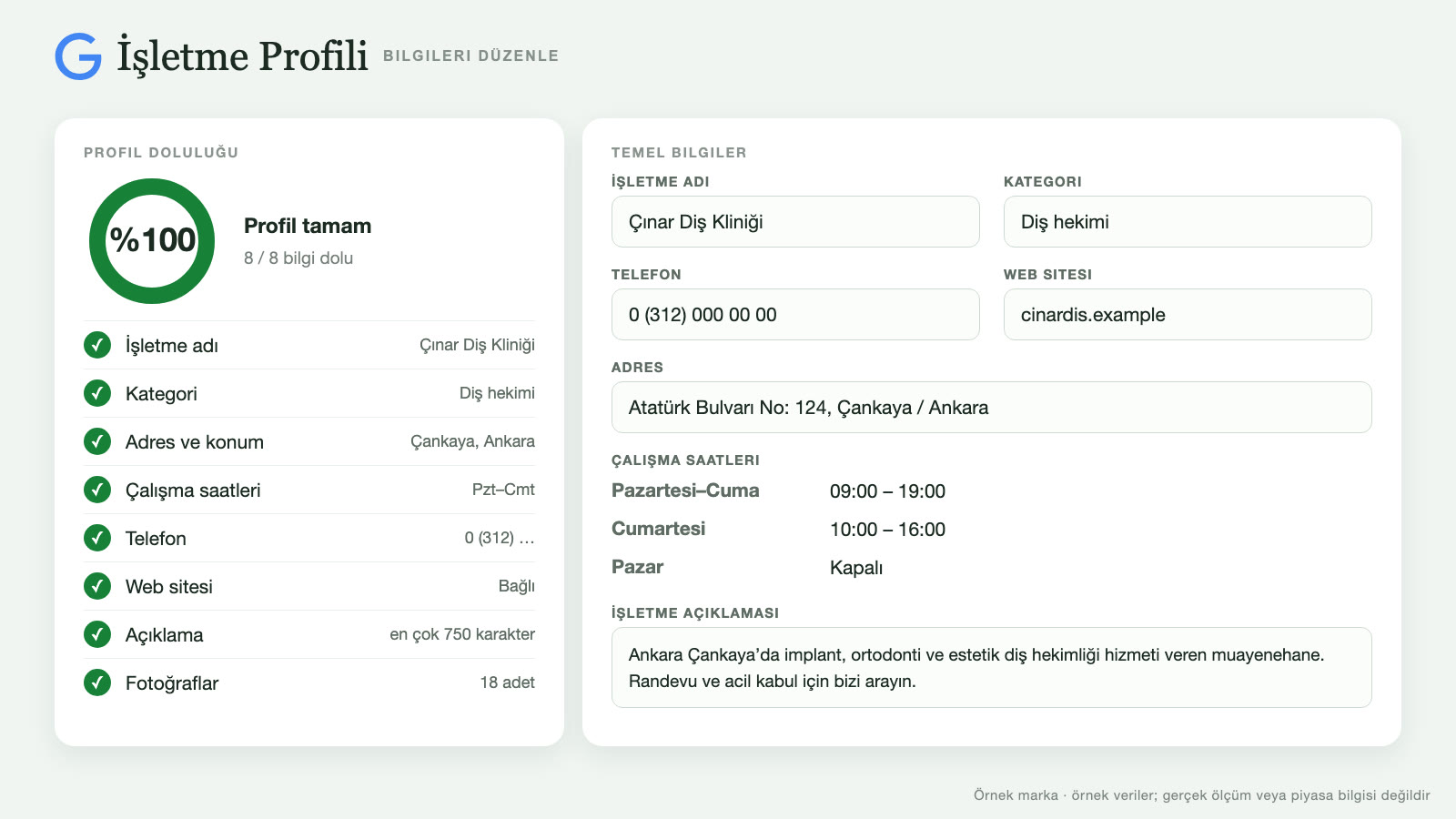
According to Google, businesses with complete and accurate information are more likely to be shown in local search results (Google local ranking tips). The headings below are the main items of that information.
Business name and category
According to Google, the business name should be entered as it appears on your signage, stationery and other branding. For the category, Google says to choose the category that represents your business’s primary activity, that up to 9 categories can be selected, and that if you have trouble choosing, you should choose the more general category; don’t use categories only as keywords or to describe your business’s features (Google help).
Address, opening hours and contact
According to Google, the address, opening hours and contact details appear in the profile; special hours can be set for holidays and other temporary periods, and you can enter 2 more phone numbers in addition to the primary one. If the system cannot find your address, you can mark your location directly on the map. As a recommendation, keep the information on your website and other platforms consistent with the profile.
Description, services and products
According to Google, in the description add information useful to customers, such as the products and services you offer, what makes you special and how long you have been in business; don’t include URLs or HTML code, don’t exceed 750 characters, and focus on details about your business rather than details about promotions, prices or sales (Google help).
Attributes
Google recommends also providing other details, such as parking or Wi-Fi availability (Google local ranking tips); mark the ones that apply.
Photos and Video
According to Google, you can add photos and videos of the storefront, products and services; adding an exterior photo helps visiting customers recognize the business. As a recommendation, use clear, well-lit, real images. For tips, see our product photography guide.
Reviews and reputation management
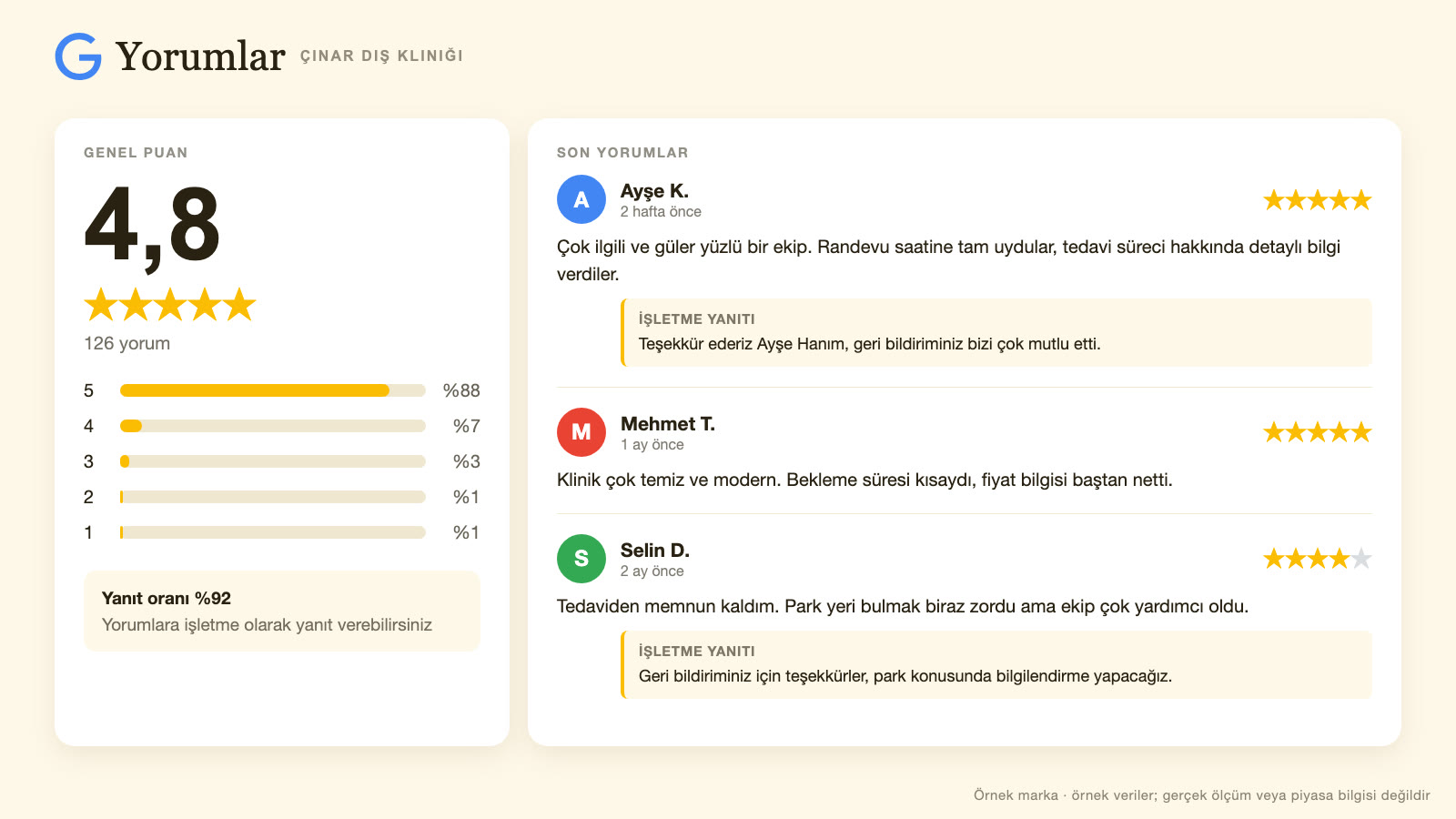
According to Google, more reviews and positive ratings can contribute to a business’s local ranking; positive reviews and helpful replies can also help the business stand out (Google local ranking tips).
How do you collect reviews?
- Remind customers: According to Google, you can ask customers to visit a Google link or scan a QR code to leave a review (Google help).
- Don’t offer incentives: Google allows you to ask for or encourage reviews that reflect a real experience, as long as you don’t offer incentives or try to influence the rating or the content of the review.
- Reviewers need a Google Account: According to Google, customers must be signed in to a Google Account to write a review.
Google’s Maps content policy does not allow reviews and ratings that are paid for, directly or in kind; sellers are also not allowed to offer incentives such as payment, discounts, or free products or services in exchange for reviews, to block negative reviews, or to specifically ask customers for positive reviews (Google Maps content policy). According to Google, such incentives count as fake engagement and are strictly prohibited; Business Profile restrictions may be applied for policy violations (Google help).
How do you reply to reviews?
- Replies: According to Google, you need to verify your business in order to reply to reviews; if your reply is approved, it is published publicly under the customer’s review and the reviewer is notified. Google recommends being polite and professional and keeping replies short and simple (Google help).
- For negative reviews: Google recommends giving helpful replies to negative reviews. As a recommendation, write calmly and focus on solutions; avoid a defensive tone.
- Reviews that violate the rules: According to Google, you can flag reviews that you think violate its content policies (Google help).
Google notes that customer reviews can contain useful feedback about your business. As a recommendation, also use recurring complaints in reviews to improve your products and services.
Under Article 28/B, as amended by the Regulation Amending the Regulation on Commercial Advertising and Unfair Commercial Practices (Official Gazette, July 1, 2026, issue 33297; in force August 1, 2026), if sellers and providers online, or intermediary service providers that mediate the formation of distance contracts on their behalf, give consumers the ability to review goods, services or the seller, reviews may only be written by those who purchased the goods or services concerned. Consumer reviews collected from channels where the purchase process cannot be verified may not be published. How this article applies to Google Maps reviews is not the subject of this article. For the exact text, see the Official Gazette page at the link.
What affects local ranking
According to Google, local results are mostly determined by three factors: relevance (how well the profile matches the user’s search), distance (how far the business is from the customer searching) and prominence (how well known the business is; it depends on information such as the number of websites that share a link to your business and the number of reviews you receive). Google also notes that it is not possible to request or pay for a better local ranking. Within this framework, the practical steps recommended by Google and added to by Media Fish (not sourced) are as follows:
- Fill in the profile information completely and accurately; make sure the category and services match what customers search for.
- Media Fish recommendation: Make sure the business name, address and phone number are written consistently on your website and in other online listings (directories, social media).
- Increase the number of reviews and your rating; reply to reviews.
- Media Fish recommendation: Build useful pages on your website that mention districts and service areas; for overall search visibility, read our SEO guide.
- According to Google, prominence also depends on the number of websites that share a link to your business, so you can try to earn links from trusted local sites (news, associations, local directories).
- Update the profile regularly: new photos, changes in hours.
According to Google, distance is a ranking factor; if the customer doesn’t share their location, Google uses what it knows about the customer’s location. As a recommendation, rather than measuring ranking from a single point, track the profile’s views and action data.
Measuring performance
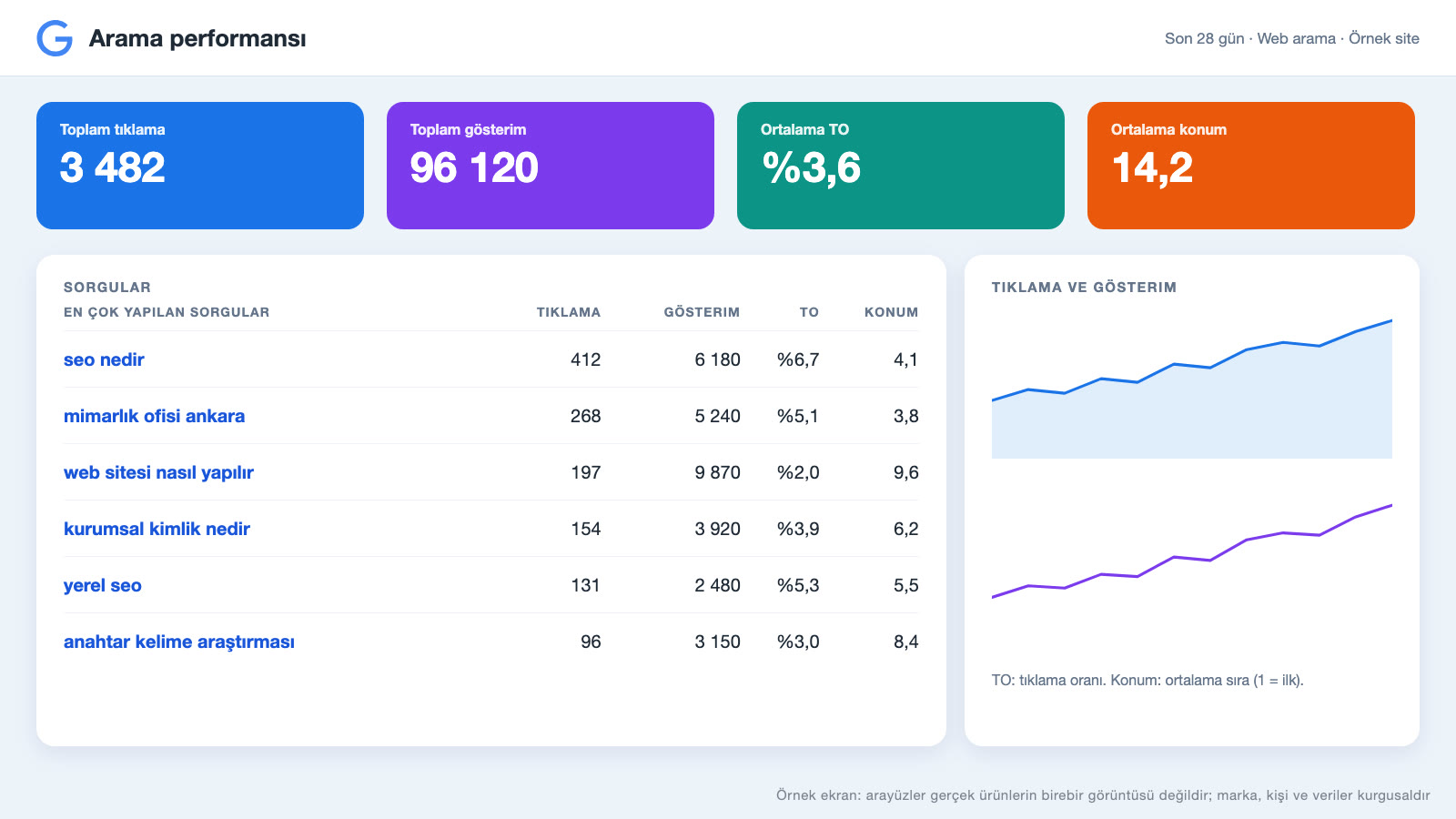
According to Google, performance data is available only for verified profiles; it shows how many people viewed your profile on Search and Maps, which search terms users used to find your business, the number of users who requested directions, and the number of clicks on the call button and website link (which metrics are offered may vary by business). Interpret the report by asking these questions:
- Which searches am I showing up in, and are they the right searches for my business?
- Are views rising while actions (calls, directions) are not? If so, there may be a gap in photos, reviews or information.
- How does engagement change over a specific date range? Google lets you choose a date range to track performance for a given period.
As a recommendation, evaluate profile data together with website and advertising data. Google notes that Business Profile can be connected to Google Analytics (Google performance help).
Using your profile and ads together
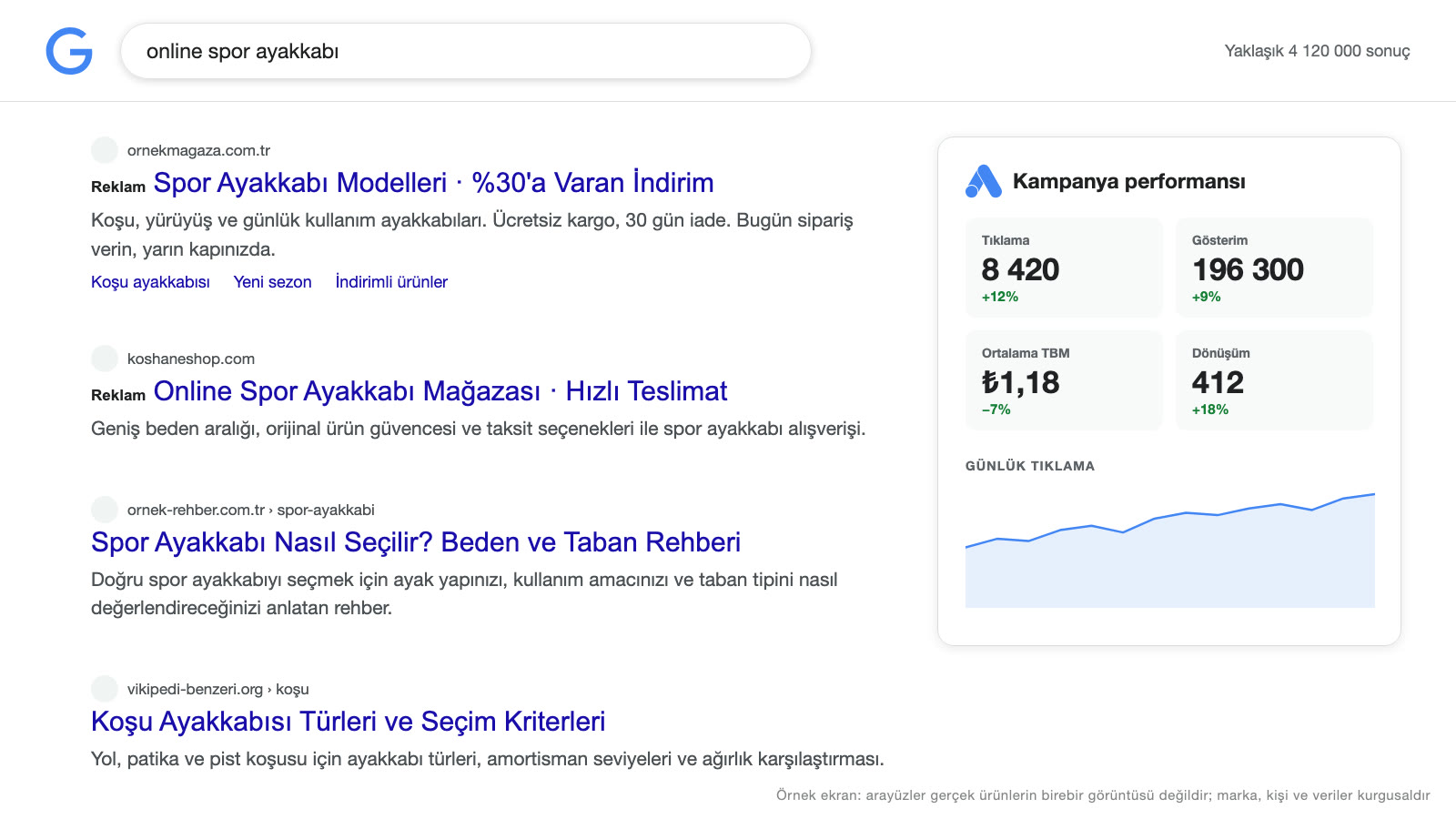
Google notes that location-based ads can be used to reach a wider audience (Google getting-started page). For setup and budget, take a look at our Google advertising guide.
Multiple locations and manager access
Google’s guidelines page has separate rules for chain stores, and all of a business’s locations must have the same “Primary category” (Google guidelines, Google help). Google offers Business Profile Manager for managing multiple profiles and defines owner and manager roles for profiles; after verification, you can add a third party that helps you manage your profile (Google verification help). As a recommendation, when working with an agency, keep profile ownership in the business’s own account and add the agency as a manager.
Deleting, closing and transferring a profile
“Delete Google Business Profile” and “how to delete” are frequently searched queries. You need to tell three different situations apart:
- If the business has closed: In the profile removal flow, Google offers a “mark as permanently closed” option to show that the business is closed; if you mark the business as closed, it is not removed from Maps immediately, and removal from Search results happens gradually (Google help).
- If you want to remove the profile from your Google Account: According to Google, removing content and managers is permanent: shared posts, photos, videos and review replies are permanently removed, while user-generated content and reviews are not; unless the business is deemed ineligible, it may continue to appear on Search and Maps even after removal. Only primary owners can do the removal.
- If you want to hand ownership to someone else: Google notes that you can remove your account from a profile without removing the other owners and managers, and that primary ownership can be transferred (same help page).
Google offers a help page titled “Resolve duplicate profile and ownership issues” (Google help). As a recommendation, businesses whose address changes should update the profile with the new address.
Your profile and website should work together
Google notes that the profile can send customers to your website, social media and booking links (Google getting-started page). The following are not sourced findings but a working framework recommended by Media Fish: writing the business name, address and phone number on the website exactly as in the profile, a map and directions, opening hours, a clear description of services and areas, customer reviews and photos, an easy call button on mobile; if there are several locations, a separate page for each one; and structured data (code that describes the business information explicitly to search engines). For details, see our SEO guide.
Monthly and seasonal maintenance calendar
A profile that is set up once and then left alone falls behind over time. The calendar below is not a rule from a source; it is a working framework recommended by Media Fish:
- Weekly: Reply to new reviews and add photos if needed.
- Monthly: Look at the performance report and see which searches find you and which actions (calls, directions) are rising.
- Every three months: Review the list of services and products, prices, description and categories; add a new set of photos.
- Before holidays, vacations and special days: Enter special opening hours and campaigns.
- When something changes, such as a move, a new phone or a new location: Update the profile, the website and other listings on the same day.
Not tying maintenance to one person and writing down who is responsible is a good practice. For how to organize account management, see our social media management guide.
Profile security and possible issues
According to Google, anyone who notices an error on a business profile they don’t own or manage can suggest an edit (Google help); keeping an eye on those suggestions by checking your profile regularly is a good practice. To protect yourself, using a strong password and two-step verification on the profile’s manager account and giving access only to the people who need it are also general security practices recommended by Media Fish (not a rule taken from Google). If you notice a policy violation, use Google’s violation reporting channels and keep evidence such as screenshots.
Common problems
- The verification card isn’t arriving: According to Google, codes usually arrive within 14 days, you should make sure the business’s mailing address is correct, and the code expires after 30 days (verification help); the same page says Google asks you not to request a new code while waiting, because a new code invalidates the one in the mail.
- The profile was suspended: Google notes that it reserves the right to suspend access to Business Profiles of people or businesses that violate its rules (Google guidelines); read the reason in the relevant section of the guidelines and correct it.
- Someone else has claimed my profile: According to Google, you can ask the current owner of a verified profile to transfer ownership to you (Google help).
- Wrong information is showing: You can edit the details in your profile from Search or Maps; people who don’t own the profile can also suggest edits.
- The map pin is in the wrong place: When the system cannot find your address, Google lets you mark the location directly on the map.
- Reviews are not showing or were removed: Reviews that violate Google’s content policy can be removed; you can flag a review you think breaks the rules.
Common mistakes
- A business name stuffed with keywords: Google does not allow unnecessary information to be added to the business name and notes that this can lead to suspension.
- Missing or conflicting information: A different address, hours or phone number on the website, in the profile and on the signage.
- The wrong category: A category that doesn’t match the service the customer is looking for, or is too generic.
- A profile without photos or with low-quality ones: Outdated images that don’t inspire trust.
- Ignoring reviews: Complaints and thank-yous left unanswered.
- Buying reviews or writing fake ones: Google’s policy does not allow fake engagement.
- Forgetting to update: Holiday hours, a move or a closure not being updated.
- Creating duplicate listings: More than one profile for the same business.
- Tying access to one person: A departed employee or an agency that keeps the management access.
Example scenario: A neighborhood bakery
A fictional example: A small neighborhood bakery that has just opened notices that some customers in the area saw it while passing by, but thinks that newly settled households don’t know about the business. It has no website; only a social media account.
Setup: The owner creates the profile by entering the business name exactly as it appears on the signage, choosing “Bakery” as the primary category and “Pastry shop” as an additional category. The address, map pin, opening hours and phone are confirmed. Verification is done by postcard.
Optimization: Clear photos are uploaded of the exterior, the shop window, the products fresh from the oven and the team. “Takeout,” “bulk orders” and “special-occasion cakes” are added to the services and description sections. The description explains what the bakery does without exaggeration. The photos are refreshed regularly.
Reviews: A profile QR code is placed at the register and on the packaging, and happy customers are politely asked for a review. Short, personal replies are written to the reviews that come in. For one negative review, the late delivery is acknowledged and the bakery says it is adjusting its order times.
Possible outcome (hypothetical): On the performance screen, the business tracks views and “directions” requests; looking at this data, it might decide, for example, to highlight a product that stands out in the morning hours.
This fictional example is meant to show how accurate and complete information, real photos, regular updates and review management work together; it is not a real result.
Google Business Profile checklist
- Is the business name the same as on the signage and official records, with no keywords added?
- Is the profile verified?
- Do the primary and additional categories match what customers search for?
- Are the address, map pin, phone and website correct and consistent?
- Have opening hours and holiday and special-day updates been entered?
- Have the description, services, products and attributes been filled in?
- Have real, good-quality photos (exterior, interior, products, team) been uploaded?
- Is there a regular update routine?
- Is there a system for collecting and replying to reviews?
- Is profile ownership held in the business’s own account, with a backup manager?
- Are performance numbers reviewed monthly?
If you want to run profile setup, photos, review management and local advertising together, take a look at our digital advertising and local visibility services. To get your website ready for local searches, you can also read our corporate website guide.
Mini glossary: Local visibility terms
- Google Business Profile: The business’s free information card on Google Search and Maps.
- Local SEO: The work of increasing a business’s visibility in local searches.
- Verification: The process of proving that the business is real and that you own the profile.
- Service area: The geographic area where the business travels to its customers.
- Category: The label that describes the type of business.
- NAP consistency: The business name, address and phone number being identical across all online listings (a term used in the SEO industry; not an official Google term).
- Local pack: The section of search results that shows a map and a few businesses.
- Prominence: According to Google, how well known the business is.
Frequently asked questions
How do you set up a Google Business Profile?
You sign in with a Google account, enter the business name, category, address or service area and contact details, then complete verification by one of the available methods, such as a postcard, phone, email or video. After verification, fill in the details, photos and hours completely.
Is adding a business to Google Maps free?
Yes. According to Google, you can add your business to Google or claim it, and manage how it appears on Maps and Search for free (Google help). Google notes that location-based ads can also be used to reach a wider audience; these are advertising services separate from the profile.
How long does Google Business Profile verification take?
It depends on the method. According to Google, postcard codes usually arrive within 14 days; after you complete the verification steps, the review can take up to 5 business days and rarely longer. Because the timing and the options for other methods can change over time, check Google’s current help page.
How do I improve my profile’s ranking?
According to Google, local results are mostly determined by relevance, distance and prominence, and it is not possible to request or pay for a better local ranking. Providing complete and accurate information, replying to reviews, adding photos and videos and verifying the business are among the steps Google recommends (Google help).
How do you delete a Google Business Profile?
According to Google, removing profile content and managers is permanent; removed content cannot be recovered, user-generated content and reviews are not removed, and the business may still appear on Search and Maps. The removal flow also offers a “mark as permanently closed” option to show that the business is closed (Google help). For a change of ownership, Google offers transferring primary ownership.
Can I create a profile if I don’t have a website?
Google’s getting-started page says you need a Google Account to sign up for Business Profile; it does not list a website as a requirement. The same page says you can enter opening hours, website, phone number and location in the profile, and send customers to your website, social media and booking links (Google help). The fields requested during sign-up may change over time; check the current screen.
Conclusion
A Google Business Profile is one of the ways to reach local customers. A profile that is set up with accurate information, verified, built on the right category, real photos and regular updates, and whose reviews are managed can make a business both visible and trustworthy in search and map results. Instead of setting it up once and forgetting it, building a small monthly maintenance routine is a good practice.
This article was prepared with AI support. The images in the article are sample screens drawn with code; they don’t show a real client, person, place or data.
Related work
A few examples of Media Fish’s work on this topic:
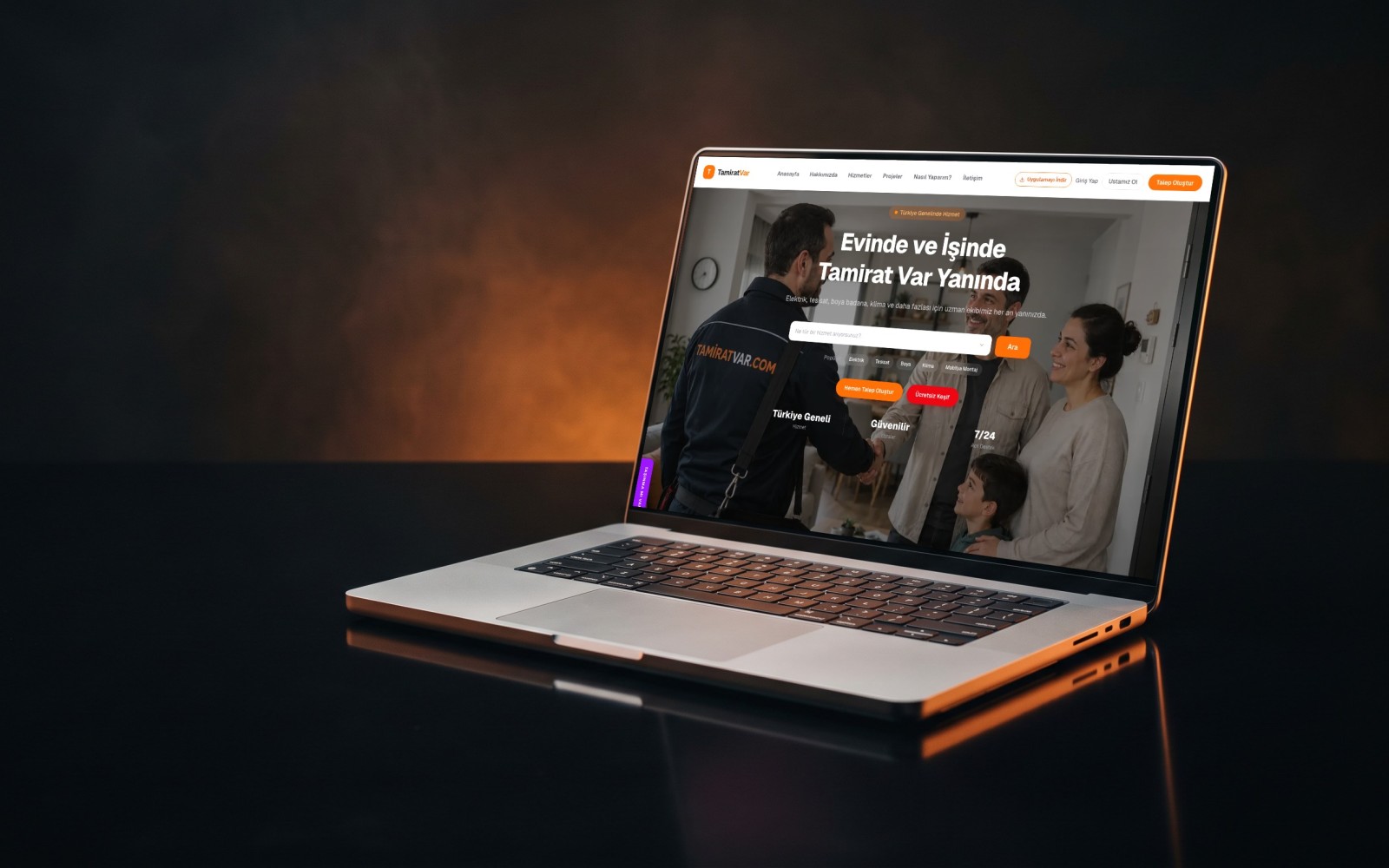

E-Commerce Site + SEO + SEM
Design · Software · Publishing

Corporate Website + SEO
Design · Software · Publishing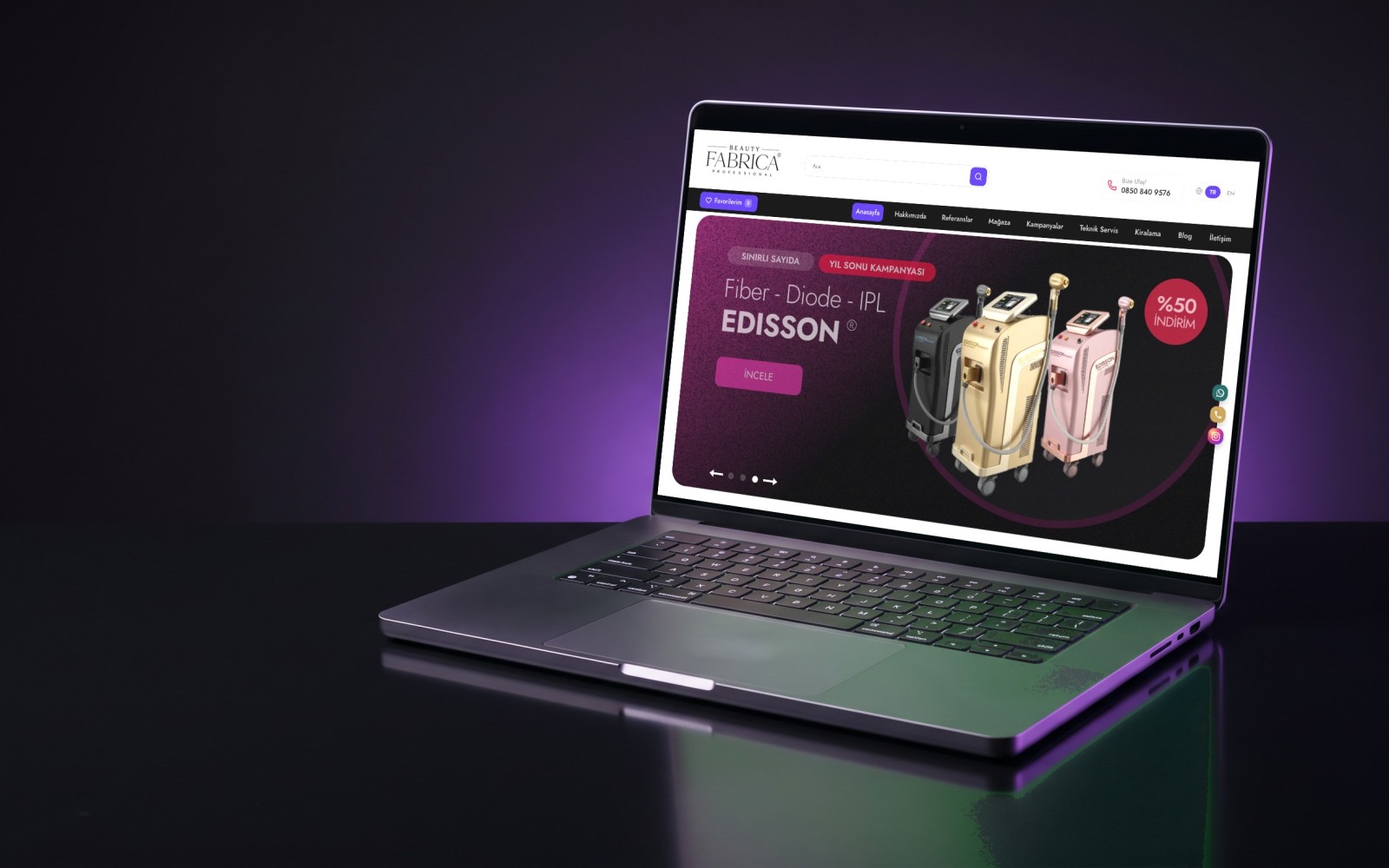

E-Commerce Site + SEO + GEO
Design · Software · Publishing
Social Media Specialist, Media Fish. Writes on our blog about social media management, digital advertising, branding and content production.